Streamlining Jisc Certificate Services online form

Streamlining Jisc Certificate Services online form

  • Introduced a multi-step structure to logically group information and reduce confusion.

  • Improved error feedback with inline validation, leading to clearer user guidance.

  • Simplified the ordering process, resulting in a reduction in helpdesk tickets.

Company

Jisc

Role

UX Designer

Timeline

January 2022

Status

Live

Team

UX Designer, PM

Tools

Adobe XD

Methods

UI Design

Company

Jisc

Role

UX Designer

Timeline

January 2022

Status

Live

Team

UX Designer, PM

Tools

Adobe XD

Methods

UI Design

The Jisc Certificate Service 'Place an order' screen in a browser window — a 'Get started' step listing what you'll need, with a progress bar and a Start order button.

01

The challenge

Improving conversions through the form and reducing tickets to the helpdesk. Analysing the current form showed evident pain points such as the form being clunky, fields confusing and the layout jarring.

02

The solution

Created a more simple, inclusive form. A multi-step structure logically grouped, easy to comprehend, and with a clear pathway for completion. Improved error feedback with inline validation and validation summary.

03

The design

Before

The original Jisc Certificate Service order form: a single long page combining customer details, service description and pricing, both registration authority officers, contact details, EV details, a privacy notice and a signature and confirmation block.

After

Step 0 · Get started

The Get started step: a card explaining the order takes about six minutes and listing what's needed — organisation details and two registration authority officers — with a Start order button.

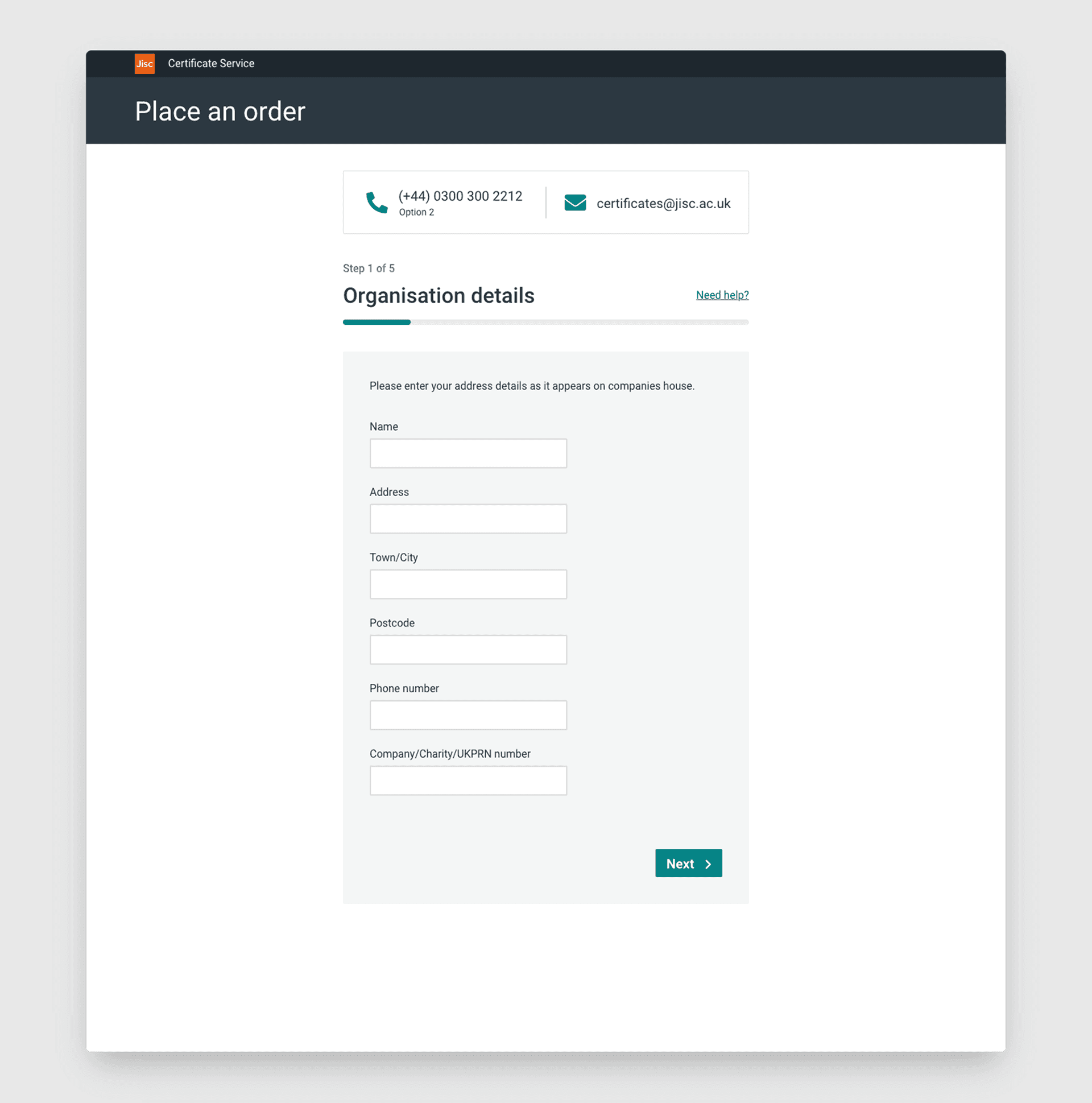
Step 1 · Organisation details

The Organisation details step: fields for name, address, town or city, postcode, phone number and company, charity or UKPRN number.

Step 1 · with contextual help

The Organisation details step with a contextual help bar at the top showing a phone number and an email address for the certificates team.

Step 2 · Services and payment

The Services and payment step: a usage-class pricing table from Extra small to Ultra, selectable class pills, and an order reference field.

Estimated savings calculator

The estimated savings calculator: a table of certificate types with reference prices and quantity inputs, returning a total certificate count, a recommended class and an estimated saving.

Step 3 · Authority officer one

The Registered authority officers step for officer one: full name, job title, email, optional phone number and optional eduPersonPrincipalName.

Step 3 · Authority officer two

The Registered authority officers step for officer two, with a note explaining why a second officer is needed as a precaution.

Step 3 · Inline validation and an error summary

The authority officer step showing inline validation: a red error summary listing three problems, with the job title, email and phone number fields flagged and messaged individually.

Step 4 · Signature

The Signature step: full name and email for the authorised representative, with 'use same details as a contact for notices' ticked so the notice fields are hidden.

Step 4 · with a separate notice contact

The Signature step with the notices checkbox unticked, revealing a separate Contact details for notices section with its own name and email fields.

Step 5 · Summary and review

The Summary step: a review of organisation details, services and payment, both authority officers and the signature, each with an Edit link, and a Place order button.

Order confirmed

The confirmation screen: 'Thank you for placing an order', a 48-hour response note, and next-step cards to download a quick-start guide or visit the JCS website.

MESSAGE ME

© 2026 Adam Maulvi

MESSAGE ME

© 2026 Adam Maulvi

MESSAGE ME

© 2026 Adam Maulvi